Published
March 23, 2026
A practical guide to converting purchase orders into ERP-ready JSON with headers, ship-to details, and item arrays.
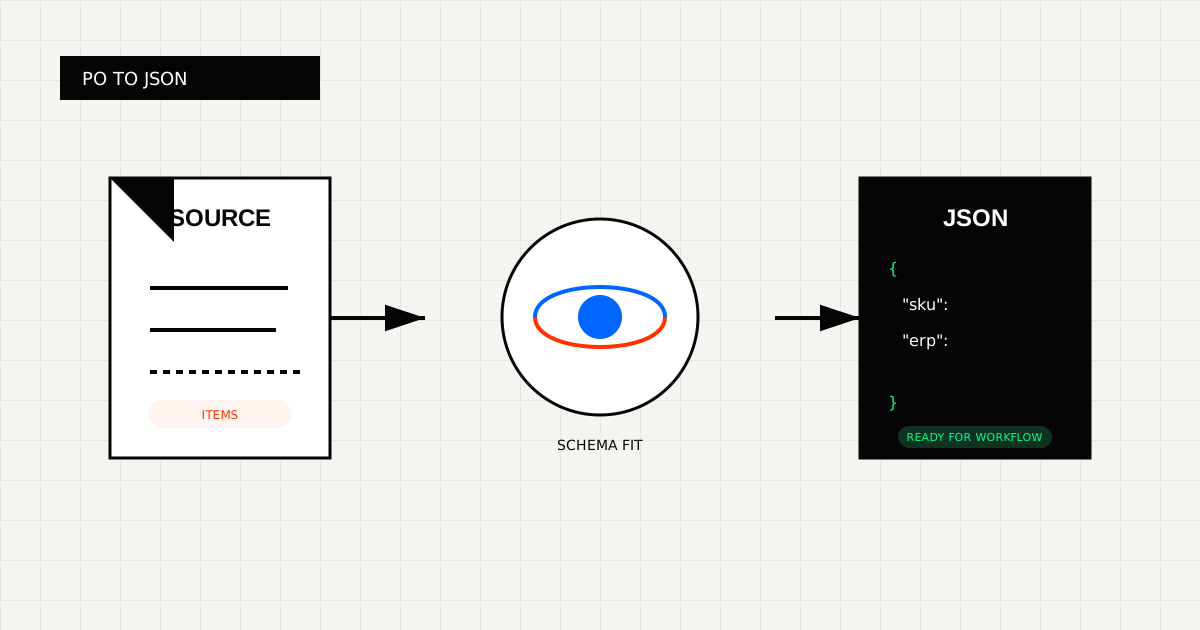
Purchase order OCR is only useful when the extracted result becomes a record your procurement or ERP workflow can trust.
That usually means:
 Purchase-order extraction becomes valuable when item arrays, supplier blocks, and ship-to details stay intact in one structured record.
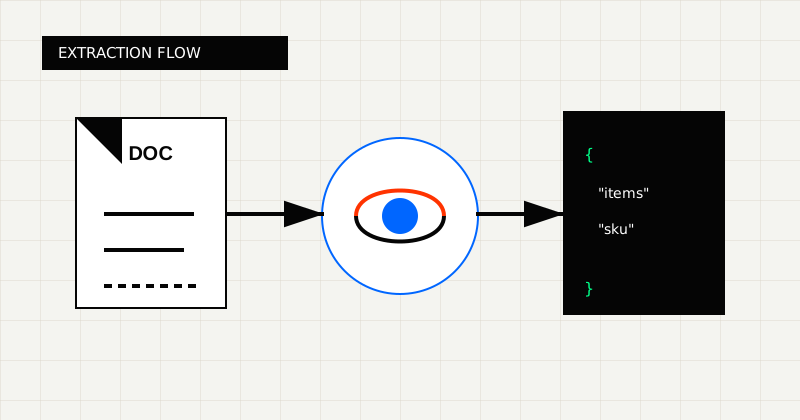 FIG 1.0 - Extraction flow from po document to schema-fit JSON.
{
  "po_number": "PO-10441",
  "supplier_name": "Blue Harbor Supply",
  "order_date": "2026-03-10",
  "items": [{ "sku": "AX-44", "quantity": 12, "unit_price": 48.0 }]
}
In practice, most ERP-ready PO payloads need more structure than the minimal example above. Depending on the workflow, you may also need:
The target JSON should mirror the receiving system, not the way the purchase order happens to be laid out.
PO extraction usually fails when:
That is why dedicated purchase-order APIs such as Purchase Order OCR API and Purchase Order to JSON API are a better fit than generic OCR when ERP writeback is the goal.
Before extraction, decide:
This sounds obvious, but a lot of PO automation projects skip it. They extract first, then discover the JSON still needs another translation layer.
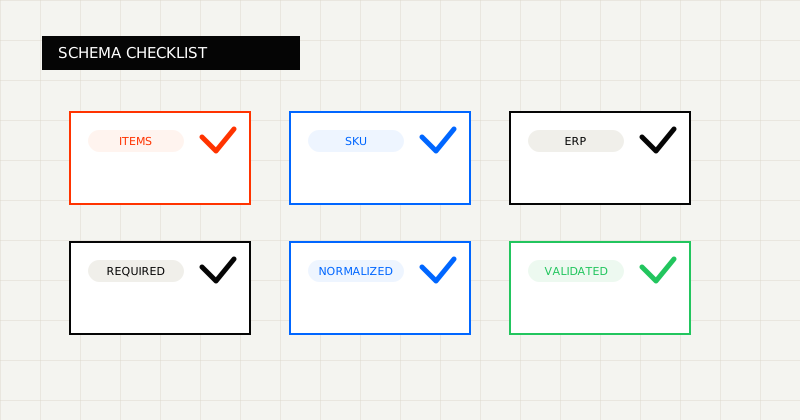 FIG 2.0 - Validation checklist highlighting the fields and failure modes that matter before downstream use.
If the procurement team still needs a readable version for review, keep markdown alongside the JSON. In workflows with disputed quantities or pricing, bounding boxes can also help reviewers jump directly to the relevant row on the page.
Before writing downstream, validate:
Those checks matter more than whether the OCR tool returned something that merely looks plausible.
LeapOCR is useful when you need:
It is especially helpful when POs arrive through mixed-quality queues, or when the same intake path also handles invoices, forms, or logistics documents.
ERP-ready JSON is the real goal for purchase-order workflows.
OCR is only the first step.
Try LeapOCR on your own documents
Eligible paid plans include a 3-day trial with 100 credits after you add a credit card, so you can test actual PDFs, scans, and forms before committing to a rollout.
Keep reading
More implementation guides, benchmarks, and workflow notes for teams building document pipelines.
An honest guide to purchase order OCR APIs for procurement and ERP workflows.
A practical guide to converting bank statements into JSON with balances, metadata, and transaction rows that downstream systems can actually use.
A practical comparison of bank statement OCR and PDF parser tools, with emphasis on transaction rows, balances, and downstream fit.