Published
March 23, 2026
A practical guide to extracting invoice line items into JSON that AP and ERP systems can actually use.
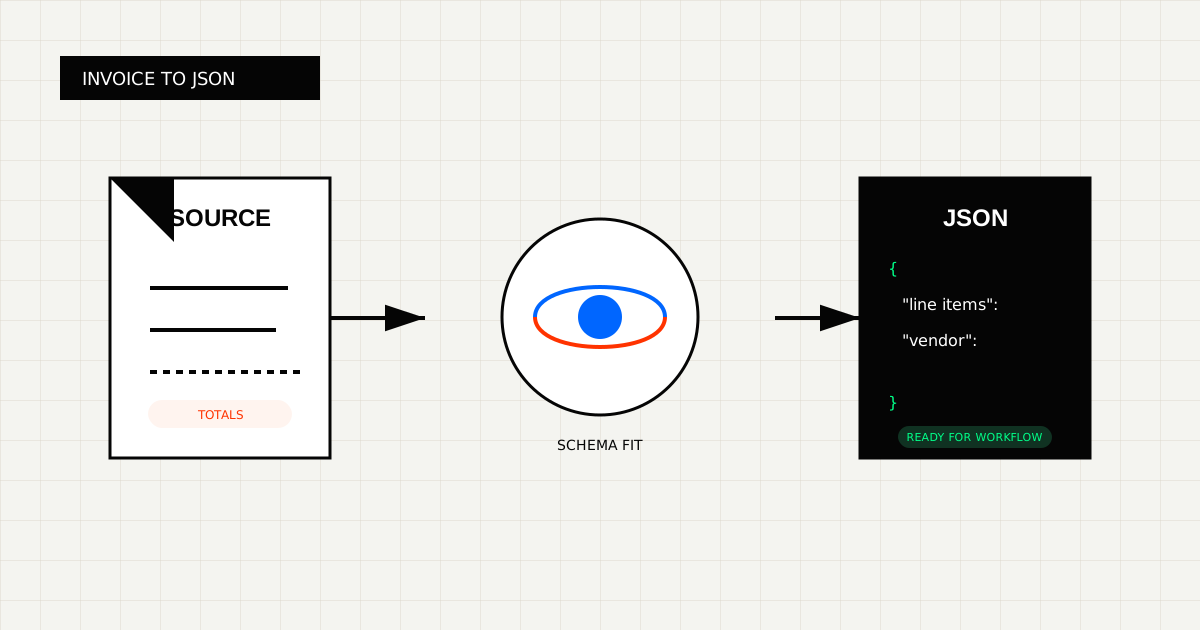
Extracting the invoice total is easy compared with extracting invoice line items well.
The hard part is preserving row structure across vendor layouts, scans, embedded images, and multi-line descriptions, then returning a JSON object that another system can validate.
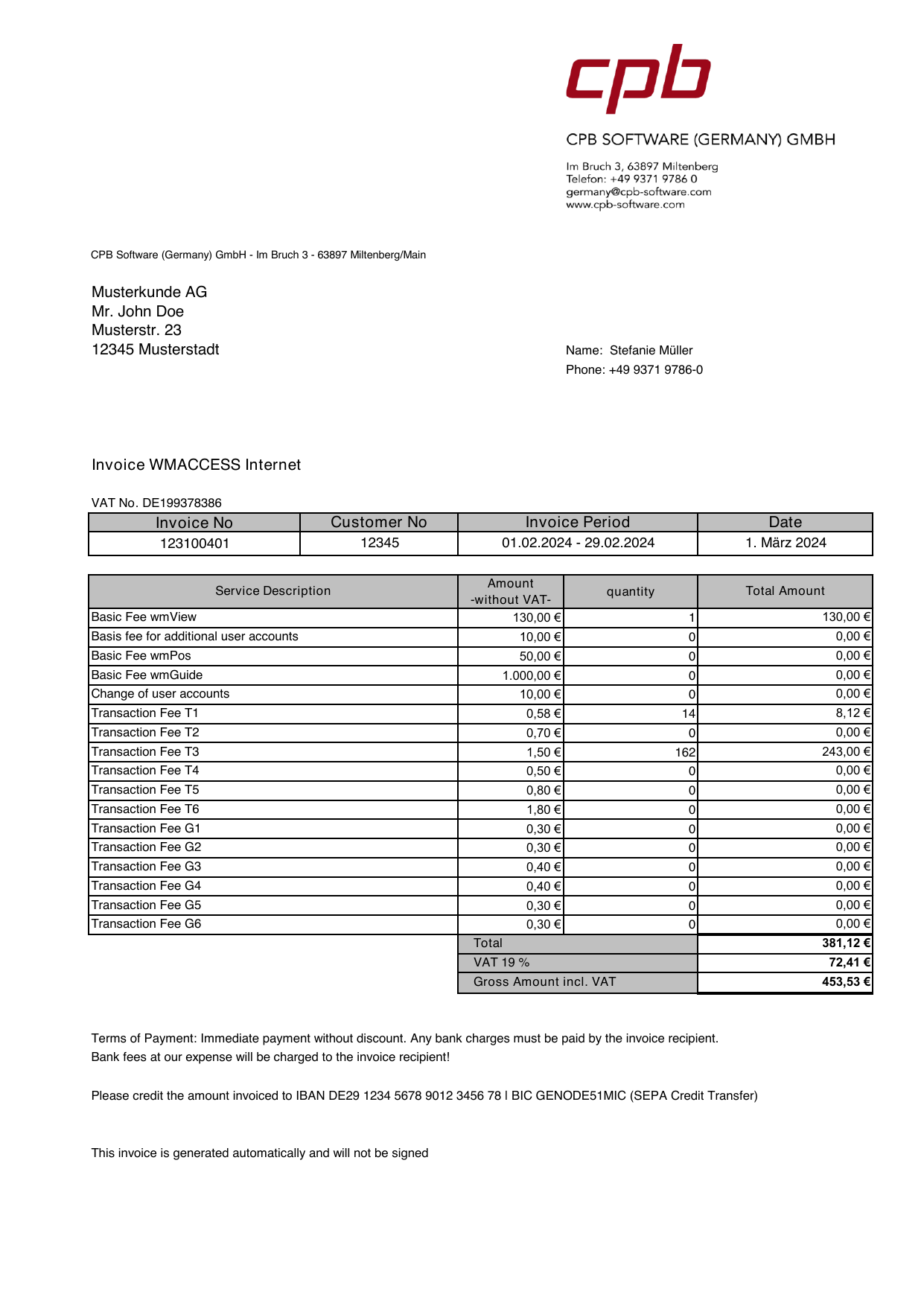 Line-item extraction is where invoice OCR stops being a headline demo and becomes a production problem.
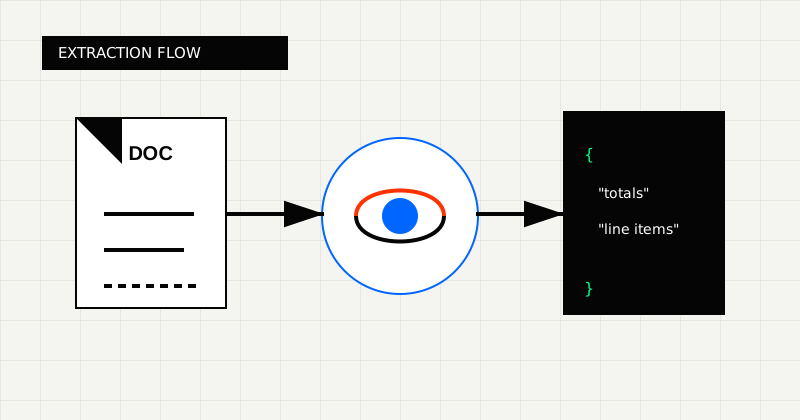 FIG 1.0 - Extraction flow from invoice document to schema-fit JSON.
Most teams need:
Each line item usually needs:
That is the difference between “OCR output” and “AP-ready data.”
If the workflow is more complex, you may also need:
The right structure depends on the system of record, not the PDF layout.
Line-item extraction usually fails when:
This is exactly why a page like Invoice Line Item Extraction API matters. The workflow is deeper than generic invoice OCR.
Before you extract anything, work backward from the destination.
Ask:
null?This matters because many OCR projects fail after extraction, when the JSON still has to be translated into the application’s actual record shape.
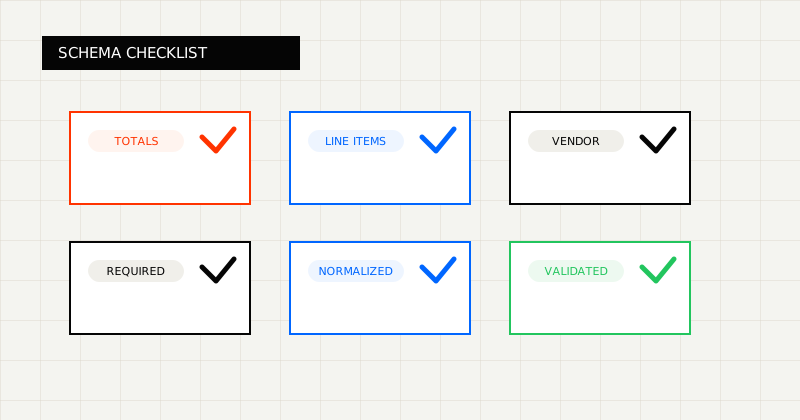 FIG 2.0 - Validation checklist highlighting the fields and failure modes that matter before downstream use.
The safer pattern is:
That pattern gives AP teams a structured object for posting while still preserving a readable invoice for exceptions.
{
  "invoice_number": "INV-8813",
  "vendor_name": "Harbor Office Supply",
  "invoice_total": 610.0,
  "line_items": [
    {
      "description": "Consulting service",
      "quantity": 1,
      "unit_price": 100.0,
      "tax_rate": 10.0,
      "line_total": 100.0
    }
  ]
}
In production, you will often want to enforce more than the example above:
Many invoice OCR tools advertise the same headline fields, but the production question is whether line items survive extraction in a stable structure. Compare tools such as Veryfi, Mindee, and Nanonets on row fidelity, not only on the header.
That is the useful evaluation lens:
Once line items are extracted, validate:
If those checks fail, route the invoice into review instead of silently writing a weak record. That is also where LeapOCR’s markdown output and optional bounding boxes become useful. A reviewer can inspect the source invoice quickly, and a UI can highlight the exact row that needs attention.
LeapOCR is strongest when:
It is also useful when you need custom output behavior, such as:
Useful pages:
If the invoice has to become a usable AP record, line-item extraction is the real workflow.
That means optimizing for row structure, validation, and downstream fit instead of only headline OCR.
Try LeapOCR on your own documents
Eligible paid plans include a 3-day trial with 100 credits after you add a credit card, so you can test actual PDFs, scans, and forms before committing to a rollout.
Keep reading
More implementation guides, benchmarks, and workflow notes for teams building document pipelines.
An honest guide to invoice OCR APIs for AP teams, including when to choose a finance-specific tool, a broader workflow platform, or a schema-first OCR layer.

An honest guide to the strongest OCR APIs for developers, including when to choose a parsing-first tool, an invoice-focused API, or a schema-first OCR layer.
A developer guide to scanned PDF OCR: how to decide between markdown and JSON, where PDF parsing fails, and how to build an extraction layer that still works on ugly real files.