Published
January 18, 2025
Practical tutorial on using LeapOCR's template builder to define and extract fields from a specific ESG document type.

You have a new ESG document type to process. Let’s say it’s Waste Management Reports from your facilities. Each report contains:
You could manually extract data from 50 monthly reports. Or you could build a custom template once and automate the entire process.
This guide shows you how to build ESG extraction templates using LeapOCR’s Template Builder. No ML expertise required.
JSON Schema validation typically achieves 80-90% schema compliance and 65-90% semantic accuracy for complex ESG documents, compared to 3-10% with traditional extraction methods. Once you create and validate a template, it can process thousands of documents with 99%+ accuracy.
A template is a reusable configuration that tells LeapOCR three things:
You can use a single template to process thousands of documents consistently.
Let’s break down what makes up a template.
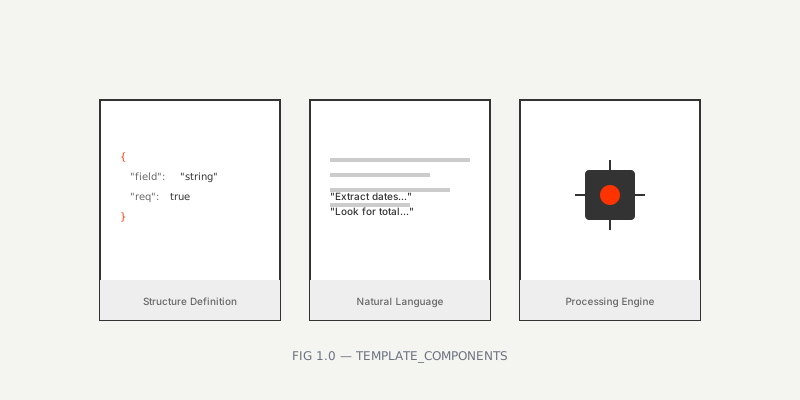 FIG 1.0 — The three pillars of a robust extraction template
{
  "name": "esg-waste-management-report",
  "description": "Extract waste data from monthly facility reports",
  "format": "structured"
}The JSON Schema defines your output structure.
{
  "type": "object",
  "properties": {
    "facility_id": { "type": "string" },
    "reporting_month": { "type": "string", "format": "date" },
    "waste_categories": {
      "type": "array",
      "items": {
        "type": "object",
        "properties": {
          "category": {
            "enum": ["recycling", "landfill", "hazardous", "organic"]
          },
          "weight_kg": { "type": "number", "minimum": 0 },
          "disposal_method": { "type": "string" },
          "cost_eur": { "type": "number", "minimum": 0 }
        }
      }
    },
    "compliance_status": {
      "type": "string",
      "enum": ["compliant", "non-compliant", "pending"]
    }
  },
  "required": ["facility_id", "reporting_month", "waste_categories"]
}Provide natural language guidance for the AI.
Extract waste management data from facility reports:

Key fields to extract:
- Facility ID (often in header)
- Reporting month (look for "Report for:" or "Month:")
- Waste categories (look for tables with: category, weight, disposal method, cost)
  - Categories: recycling, landfill, hazardous, organic
  - Weight in kilograms (kg)
  - Disposal method (incineration, landfill, composting, etc.)
  - Cost in EUR
- Compliance status (look for "compliant," "violation," "pending review")

Table structure:
- Usually a table with rows for each waste category
- Columns might include: Category, Weight (kg), Disposal Method, Cost (€)
- Handle variations: "Weight" vs "Mass," "Cost" vs "Fee"

If multiple tables, look for the summary table with totals.Choose the right model for your document:
| Model | Best For | Cost |
|---|---|---|
| standard-v1 | Clean, standard layouts | 1 credit/page |
| english-pro-v1 | Complex layouts, English | 2 credits/page |
| pro-v1 | Handwriting, poor scans, multilingual | 3 credits/page |
Waste reports often contain handwritten notes and varying formats, so use pro-v1.
Now let’s build a template together.
Template name: esg-waste-management-report
Description: Extract waste data from monthly facility reports including waste categories, weights, disposal methods, and compliance status
You can use the visual builder or write JSON directly.
Visual Schema Builder (No-Code)
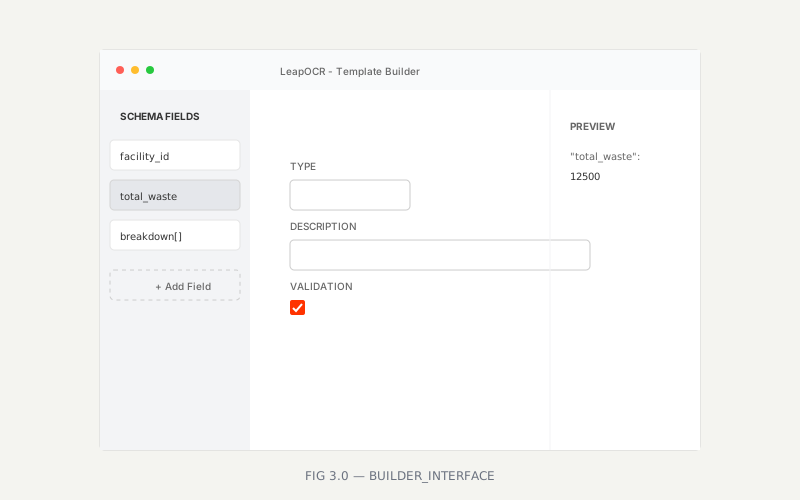 FIG 3.0 — Using the visual builder to define schema fields
facility_idStringJSON Schema Editor (Code)
{
  "$schema": "http://json-schema.org/draft-07/schema#",
  "type": "object",
  "properties": {
    "facility_id": {
      "type": "string",
      "description": "Unique facility identifier"
    },
    "reporting_month": {
      "type": "string",
      "format": "date",
      "description": "Reporting month in YYYY-MM format"
    },
    "total_waste_kg": {
      "type": "number",
      "minimum": 0,
      "description": "Total waste generated in kilograms"
    },
    "waste_breakdown": {
      "type": "array",
      "items": {
        "type": "object",
        "properties": {
          "category": {
            "type": "string",
            "enum": ["recycling", "landfill", "hazardous", "organic", "other"]
          },
          "weight_kg": {
            "type": "number",
            "minimum": 0
          },
          "percentage": {
            "type": "number",
            "minimum": 0,
            "maximum": 100
          },
          "disposal_method": {
            "type": "string"
          },
          "cost_eur": {
            "type": "number",
            "minimum": 0
          },
          "supplier": {
            "type": "string"
          }
        }
      }
    },
    "compliance": {
      "type": "object",
      "properties": {
        "status": {
          "type": "string",
          "enum": ["compliant", "non-compliant", "pending_review"]
        },
        "violations": {
          "type": "array",
          "items": {
            "type": "object",
            "properties": {
              "type": { "type": "string" },
              "description": { "type": "string" },
              "severity": {
                "type": "string",
                "enum": ["low", "medium", "high"]
              }
            }
          }
        }
      }
    }
  },
  "required": ["facility_id", "reporting_month", "total_waste_kg", "waste_breakdown"]
}Give the AI clear guidance about what to extract.
Extract waste management data from monthly facility reports.

DOCUMENT STRUCTURE
Most reports follow this structure:
- Header: Facility name/ID, reporting month
- Table 1: Waste breakdown by category (recycling, landfill, hazardous, organic)
- Table 2: Disposal methods and suppliers
- Footer: Compliance status, violations if any

KEY FIELDS TO EXTRACT

1. Facility Identification:
   - Look for "Facility," "Site," "Location," or ID codes like "FAC-001"
   - Extract exactly as shown (preserve format)

2. Reporting Month:
   - Look for "Report for:" "Month:" "Period:"
   - Extract in YYYY-MM format (convert if necessary)
   - Examples: "January 2024" → "2024-01", "01/2024" → "2024-01"

3. Total Waste:
   - Look for "Total Waste," "Total Generated," "Grand Total"
   - Extract weight in kilograms (kg)
   - Convert if given in tonnes (1 tonne = 1,000 kg)

4. Waste Breakdown (Array):
   Look for a table with columns like:
   - Category / Type / Waste Type
   - Weight / Mass (kg)
   - Percentage / % of Total
   - Disposal Method
   - Cost / Fee (€)
   - Supplier / Waste Management Company

   Extract each row as an object in the waste_breakdown array.

5. Compliance Status:
   - Look for "Compliance Status," "Regulatory Status," "Inspection Result"
   - Values: "compliant," "non-compliant," "pending_review"
   - If violations exist, extract:
     * Violation type (e.g., "improper disposal," "missing documentation")
     * Description (what went wrong)
     * Severity (low, medium, high)

HANDLING VARIATIONS

- Different column names: "Weight" = "Mass" = "Amount"
- Different units: tonnes → kg (multiply by 1,000)
- Different formats: "1.234,56 kg" → 1234.56 (European decimal)
- Missing data: If category not listed, don't include in array
- Multiple tables: Use the table with the most complete data

MULTI-LANGUAGE SUPPORT

If document is not English:
- German: "Abfall" (waste), " recycling" (recycling), "Deponie" (landfill)
- French: "déchets" (waste), "recyclage" (recycling), "décharge" (landfill)
- Spanish: "residuos" (waste), "reciclaje" (recycling), "vertedero" (landfill)

Extract data regardless of language, output in English.Model: pro-v1
Confidence Threshold: 0.95
Tags: ["esg", "waste", "facility"]
Color: green
Before deploying, test with sample documents.
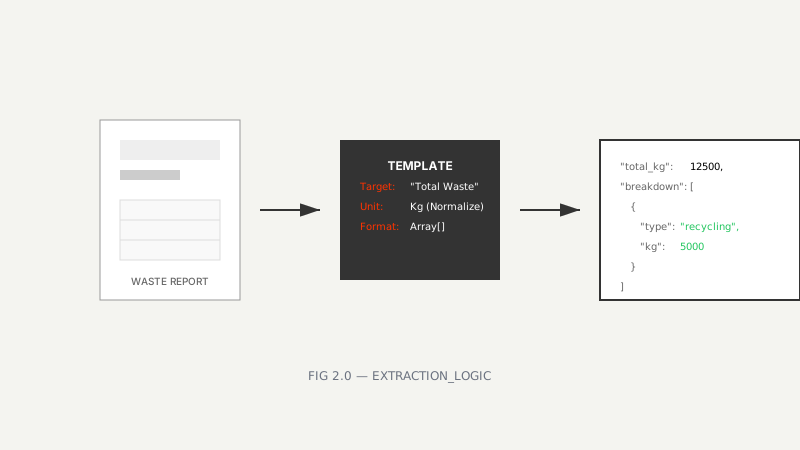 FIG 2.0 — Logic flow: From unstructured report to validated JSON
Here’s what a good output looks like:
{
  "facility_id": "MUC-01",
  "reporting_month": "2024-01",
  "total_waste_kg": 12500,
  "waste_breakdown": [
    {
      "category": "recycling",
      "weight_kg": 5000,
      "percentage": 40,
      "disposal_method": "Material recovery facility",
      "cost_eur": 250,
      "supplier": "GreenRecycling GmbH"
    },
    {
      "category": "landfill",
      "weight_kg": 4500,
      "percentage": 36,
      "disposal_method": "Municipal landfill",
      "cost_eur": 675,
      "supplier": "City Waste Management"
    },
    {
      "category": "organic",
      "weight_kg": 2000,
      "percentage": 16,
      "disposal_method": "Composting",
      "cost_eur": 100,
      "supplier": "BioCompost AG"
    },
    {
      "category": "hazardous",
      "weight_kg": 1000,
      "percentage": 8,
      "disposal_method": "Specialized hazardous waste facility",
      "cost_eur": 800,
      "supplier": "HazardousWaste Solutions"
    }
  ],
  "compliance": {
    "status": "compliant",
    "violations": []
  },
  "confidence_score": 0.97
}
Check that all required fields are present, data types are correct, values are within expected ranges, and categories match your enum values.
If extraction isn’t perfect, adjust your instructions based on what you’re seeing.
Missing waste categories
Add more specific instructions:
If waste breakdown table is split across multiple pages, combine all rows.
If category names vary (e.g., "Plastic recycling" vs "Recycling"), map to standard categories.
Wrong compliance status
Clarify what to look for:
Compliance status is NOT "compliant" if:
- Violations are listed
- "Pending review" is mentioned
- "Under investigation" is stated

Look for explicit statements like "fully compliant" or "no violations."
Handwritten notes not extracted
Make sure you’re using pro-v1 and add:
Extract handwritten notes in margins or on separate pages.
Look for handwritten annotations on compliance status or special handling instructions.Once you’re satisfied with the test results:
template_slug: esg-waste-management-reportYou can use templates through the API or the dashboard.
from leapocr import LeapOCR

client = LeapOCR(api_key=os.getenv("LEAPOCR_API_KEY"))

# Process waste report using custom template
job = client.ocr.process_file(
  file_path="waste_report_jan2024.pdf",
  format="structured",
  template_slug="esg-waste-management-report"
)

result = client.ocr.wait_until_done(job["job_id"])

if result["status"] == "completed":
  waste_data = result["pages"][0]["result"]
  confidence = result["pages"][0"].get("confidence_score", 0)

  if confidence >= 0.95:
    # Auto-approve
    save_to_database(waste_data)
  else:
    # Flag for review
flag_for_review(waste_data, confidence)esg-waste-management-reportOnce you’ve mastered the basics, you can add more sophisticated features.
Extract fields only when certain conditions are met:
{
  "if": {
    "properties": {
      "compliance_status": { "const": "non-compliant" }
    }
  },
  "then": {
    "required": ["violations", "corrective_action_plan"]
  }
}Make sure array items meet your criteria:
{
  "waste_breakdown": {
    "type": "array",
    "items": {
      "type": "object",
      "properties": {
        "category": { "type": "string" },
        "weight_kg": { "type": "number", "minimum": 0 }
      },
      "required": ["category", "weight_kg"]
    },
    "minItems": 1,
    "uniqueItems": true
  }
}Validate relationships between fields:
{
  "allOf": [
    {
      "if": {
        "properties": {
          "total_waste_kgh": { "type": "number" }
        },
        "required": ["total_waste_kg"]
      },
      "then": {
        "properties": {
          "total_waste_kg": {
            "const": { "$data": "1/waste_breakdown/sum(weight_kg)" }
          }
        }
      }
    }
  ]
}
Note: Cross-field validation typically requires application-level validation.
Here are some practices that work well in practice.
Build a basic template first, then add complexity gradually.
Vague instructions lead to inconsistent results.
Instead of:
Extract waste data.Try:
Extract waste data from the table titled "Waste Summary."
Look for columns: Category, Weight (kg), Disposal Method, Cost (€).
Extract each row as an object in the waste_breakdown array.Example waste categories:
- "Paper recycling" → category: "recycling"
- "General waste" → category: "landfill"
- "Food waste" → category: "organic"
- "Chemical waste" → category: "hazardous"
Map variations to standard categories.If weight is given in tonnes, convert to kg (multiply by 1,000).
If cost is missing, set to null or 0. Don't omit the field.
If a category is listed but weight is 0, still include it.Track these metrics to understand how well your template is working.
| Metric | Target | How to Measure |
|---|---|---|
| Field-level accuracy | >95% | Sample 20 fields, verify against source |
| Document-level accuracy | >90% | All fields correct |
| Confidence calibration | ±5% | 95% confidence = 95% actual accuracy |
| Processing speed | <20 sec | Average processing time |
| Auto-approval rate | >85% | % with confidence ≥95% |
Keep an eye on these metrics for each template:
Custom templates automate repetitive ESG document processing. A well-designed template achieves 99%+ accuracy on consistent documents, processes in under 20 seconds, and scales across thousands of documents.
Consider the time savings: manually processing 50 documents at 30 minutes each takes 25 hours. The same 50 documents take about 25 minutes with automation.
Your ESG documents have unique requirements, and your templates should reflect that.
Next Steps:
Try LeapOCR on your own documents
Eligible paid plans include a 3-day trial with 100 credits after you add a credit card, so you can test actual PDFs, scans, and forms before committing to a rollout.
Keep reading
More implementation guides, benchmarks, and workflow notes for teams building document pipelines.

Design and implement a real-world invoice processing pipeline with LeapOCR – from defining your data schema to handling async jobs, validation, and integrations.

Technical walkthrough using the SDK (Python/TS). Code snippets for ingesting documents and mapping to an ESG-specific JSON schema.

An honest guide to invoice OCR APIs for developers, with a focus on workflow ownership, line items, and downstream fit.