Published
December 8, 2025
Garbage in, garbage out. A pre-flight checklist to ensure your documents are ready for high-accuracy extraction.
OCR engines can handle handwritten notes on crumpled receipts and coffee-stained invoices. But they still struggle with poor quality input. A low-resolution JPEG thumbnail or a sideways document will produce unreliable results.
After processing millions of pages at LeapOCR, we’ve noticed the same issues appearing repeatedly. This checklist covers what to check before sending documents through your pipeline.
LeapOCR accepts over 100 file formats through URL or direct upload. This includes documents (PDF, DOCX, DOC, ODT, RTF, TXT), images (PNG, JPG, WEBP, TIFF, GIF, BMP, HEIC), spreadsheets (XLSX, XLS, CSV, ODS), and presentations (PPTX, PPT, ODP).
PDFs and Word documents are rasterized during processing, meaning embedded text layers are ignored. Image formats go through directly.
Checklist:
Resolution affects OCR accuracy more than any other factor.
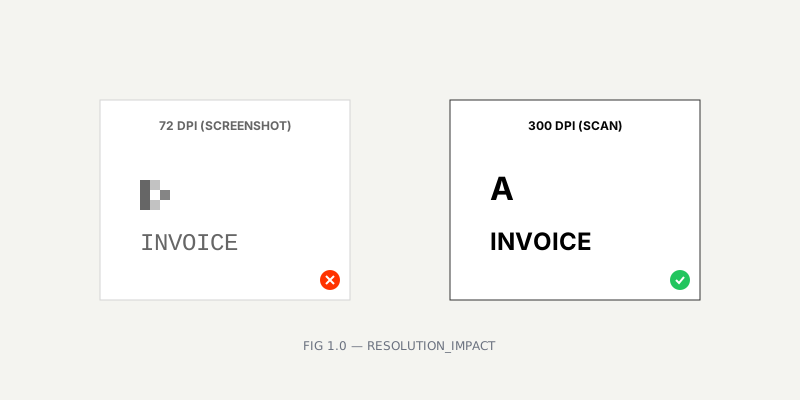 FIG 1.0 — Resolution matters: Screenshots vs Scans
Checklist:
Basic image cleanup improves accuracy.
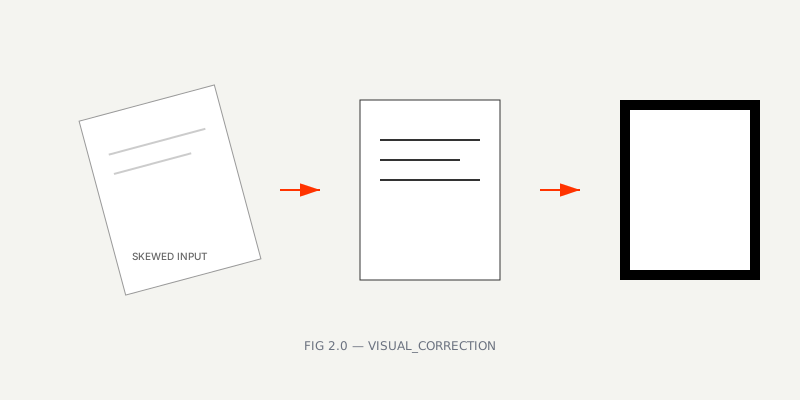 FIG 2.0 — Preprocessing pipeline: Deskewing and contrast enhancement
Checklist:
Consider what appears on the page before sending it to the cloud.
Checklist:
Note: LeapOCR jobs auto-delete after 7 days. For sensitive documents, delete immediately after processing.
Review your implementation code.
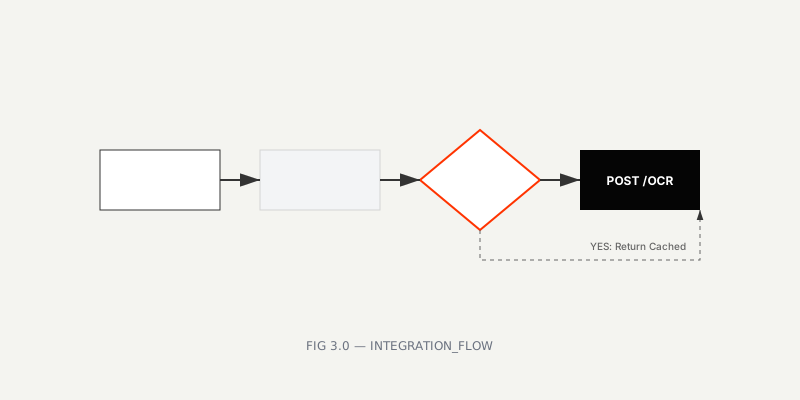 FIG 3.0 — Robust integration flow with idempotency checks
Checklist:
idempotency_key to prevent duplicate processing.DPI and file format make the difference between 90% and 99% accuracy.
You can implement a simple pre-flight script that validates image resolution before calling the API:
from PIL import Image

def is_file_ready(path):
    with Image.open(path) as img:
        if img.width < 1000 or img.height < 1000:
            print("Warning: Low resolution image.")
            return False
    return True
Test your prepared documents in the LeapOCR Dashboard.
Try LeapOCR on your own documents
Eligible paid plans include a 3-day trial with 100 credits after you add a credit card, so you can test actual PDFs, scans, and forms before committing to a rollout.
Keep reading
More implementation guides, benchmarks, and workflow notes for teams building document pipelines.

An honest guide to the strongest OCR APIs for developers, including when to choose a parsing-first tool, an invoice-focused API, or a schema-first OCR layer.
A developer guide to scanned PDF OCR: how to decide between markdown and JSON, where PDF parsing fails, and how to build an extraction layer that still works on ugly real files.
Detention and demurrage fees are the silent killers of logistics margins. See how automated document processing stops the clock and saves $100+ per container daily.