5 min read

What Is OCR? A Complete Beginner’s Guide to Document Text Extraction

A plain-English introduction to OCR, how it works, where it helps in real life, and what to watch out for when you’re just getting started.
What Is OCR? A Complete Beginner’s Guide to Document Text Extraction

If you’ve ever sat in front of a PDF or a scanned document and thought, “Cool, now I get to retype all of this by hand,” this guide is for you.

Optical Character Recognition (OCR) sounds like something out of a research paper, but in practice it’s just a way of turning pictures of text into actual text your tools can search, copy, and analyze.

In this post, we’ll skip the academic explanations and walk through what OCR really does, how it works at a high level, where it shines, and where it still falls flat—so you can decide when it’s worth using in your own workflows.

Why Documents Still Matter (And Why They’re a Pain)

Every year, teams say they’re “going digital,” and every year the number of PDFs, scans, and document photos somehow goes up.

Contracts, invoices, ID documents, onboarding packs, medical records, historical files—so much business-critical information still lives in formats that were designed for humans to read, not machines.

That’s fine until you need to:

  • Search across thousands of documents for a specific customer or policy
  • Pull totals from a stack of invoices into a spreadsheet
  • Check that all contracts include certain clauses

At that point, “just send the PDF” turns into:

  1. Open the file
  2. Zoom in
  3. Squint
  4. Alt‑tab into a spreadsheet or internal tool
  5. Manually retype everything

OCR exists to break that pattern: instead of treating documents as final, static artifacts, it turns them back into data.

What OCR Actually Is (In Human Terms)

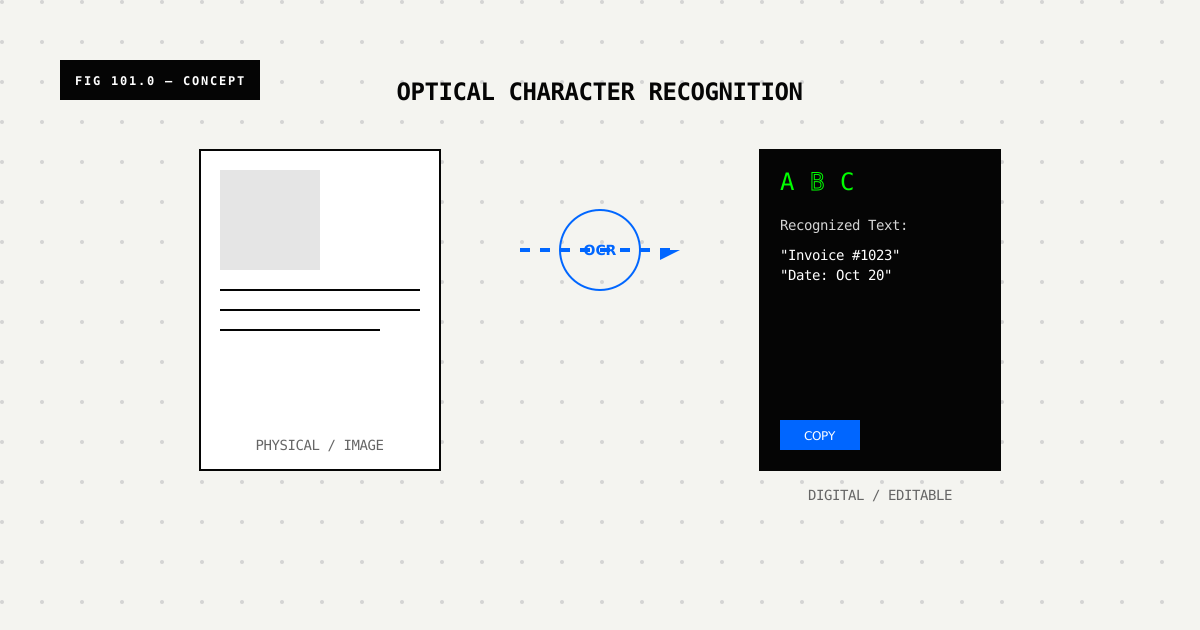
At its core, OCR is surprisingly simple to describe:

Take an image (or a PDF that behaves like an image), and get back the text that a human would read from it.

You can think of it as teaching a computer to look at a page the way your eyes do:

  • It notices where there are letters and where there’s background
  • It figures out which shapes look like “A”, which look like “B”, and so on
  • It pieces those shapes into words and lines of text

The important part is expectation setting:

  • OCR is great at: clean scans, printed text, standard fonts, well-lit document photos, simple tables.
  • OCR struggles with: tiny text, blurry phone photos, heavy shadows, handwriting, complex layouts, decorative fonts.

If you keep that mental model in mind—“it’s just reading what it can see”—OCR’s successes and failures make a lot more sense.

How OCR Works Under the Hood (Without the Math)

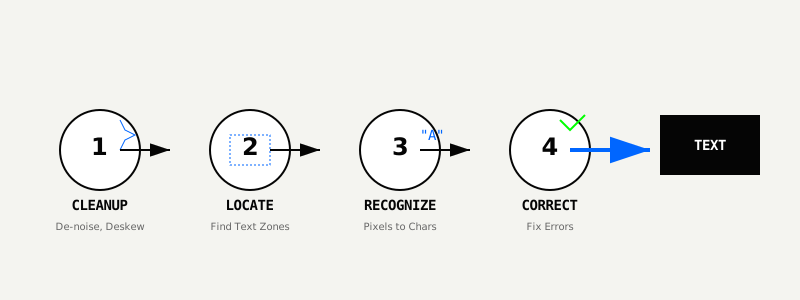
Under the hood, most modern OCR systems follow roughly the same playbook:

  1. Clean up the image so text is as clear as possible.
  2. Find the text regions—where on the page the words actually are.
  3. Recognize characters and words inside those regions.
  4. Fix obvious mistakes using context, dictionaries, and language models.

Different tools implement these steps in different ways, but the overall flow is surprisingly consistent.

Image Cleanup and Preprocessing

The first step is making the document as “easy to read” as possible—for a machine.

Common tricks include:

  • Denoising: removing specks, grain, and scanner artifacts
  • Contrast adjustment: making dark text darker and light backgrounds lighter
  • Deskewing: straightening pages that were scanned at a slight angle
  • Cropping: cutting out irrelevant parts like borders, hole punches, or UI elements

If you’ve ever taken two photos of the same receipt—one in good lighting and one in a dim room—you’ve already seen why this matters. To OCR, those are two completely different difficulty levels.

The cliché “garbage in, garbage out” applies here more than almost anywhere else. Five seconds spent getting a cleaner image can be the difference between “usable text” and “what on earth is this.”

Finding Text on the Page

Once the image is cleaned up, the system still doesn’t know where the text actually is. So the next question is:

Which parts of this image contain words, and which parts are just background, images, or decoration?

To answer that, OCR systems:

  • Scan for regions that look text‑like (lots of small, similarly sized shapes in rows)
  • Group those into lines and paragraphs
  • Sometimes identify headings, footers, columns, and tables

This is why multi‑column layouts, sidebars, and fancy headers can trip things up. To a human, it’s obvious that you read column 1 top‑to‑bottom, then move to column 2. To a computer, it’s just a bunch of rectangles to choose from.

Turning Shapes Into Characters

After the system has decided where the text is, it needs to figure out what each shape actually is.

Historically, this used to be done with handcrafted rules: if a shape has a line across the top and a small tail, maybe it’s a “t”; if it’s closed and round, maybe it’s an “o”.

Modern OCR is much more data‑driven:

  • Models are trained on massive datasets of labeled text images
  • They learn that certain pixel patterns usually mean certain characters
  • They also learn fonts, sizes, and styles rather than relying on strict templates

Some systems jump straight from image patches to whole words or lines, which helps handle tricky fonts and spacing. Either way, the end result is the same: a best guess at the characters on the page.

Fixing Obvious Mistakes

Raw OCR output can be a little rough. Think of it as a first draft: mostly right, but with typos and odd glitches.

To clean it up, most systems apply a layer of post‑processing, such as:

  • Spell‑checking against dictionaries for each language
  • Language models that know “inv0ice” is probably “invoice”
  • Formatting rules for things like dates, currency, and IDs

This is also where the system can use context:

  • If it sees “T0tal” next to a currency symbol, it’s probably “Total”
  • If a word doesn’t exist in any dictionary but looks like a name, it can be left as‑is

The goal isn’t perfection, but readability. You want something a human (or another piece of software) can work with without guessing every other word.

Common OCR File Types (And When Each One Makes Sense)

One confusing part of getting started with OCR is all the file formats. In practice, you’ll mostly see these four:

  • PDF: The default for multi‑page documents, contracts, reports, and anything that needs to stay together. Some PDFs already contain embedded text; others are just images inside a PDF wrapper.
  • JPEG: Great for photos of documents—phone pictures, scans saved as images, or anything where compression is acceptable.
  • PNG: Better for digital‑first content like screenshots or UI exports, where you want crisp edges and minimal compression artifacts.
  • TIFF: Common in archiving and scanning workflows. Supports multi‑page images and high quality, but files can get very large.

The “best” format is usually the one you already have. Most OCR tools are happy to accept PDFs and common image formats; the bigger lever is the quality of the underlying image, not whether it’s a PNG or JPEG.

Real-World Use Cases Where OCR Shines

It’s easy to talk about OCR in the abstract. It’s more useful to look at where it actually helps teams today.

A few patterns we see over and over:

  • Invoices and bills: Extracting supplier names, invoice numbers, due dates, and totals so finance teams can reconcile and pay without retyping everything.
  • Contracts and agreements: Making long documents searchable so legal or ops can quickly check for key clauses, renewal dates, or obligations.
  • Onboarding documents: Pulling names, addresses, IDs, and policy numbers from forms so customer success teams don’t spend their time copying text.
  • ID and compliance checks: Reading fields from passports, licenses, or other IDs as part of KYC or onboarding flows.
  • Historical and archived documents: Turning scanned archives into searchable knowledge bases instead of digital shoeboxes.

In all of these cases, the goal isn’t just to “get the text.” It’s to unlock workflows that would otherwise be too painful or expensive to do at scale.

Why OCR Sometimes Fails (And How to Spot Trouble Early)

Despite all the progress, OCR still has bad days. The failures are rarely random; they’re usually predictable if you know what to look for.

Common culprits:

  • Low resolution: If you zoom in and individual letters look like blobs, the model is guessing.
  • Motion blur: A quick shaky phone photo can smear characters together.
  • Bad lighting: Heavy shadows, glare, or reflections hide parts of words.
  • Tiny fonts: If you’re squinting, the model is too.
  • Busy backgrounds: Watermarks, patterns, and gradients make it harder to separate text from noise.
  • Handwriting: Especially fast, messy handwriting or unusual scripts.

A simple rule of thumb: if a human has to work to read it, OCR will probably struggle too.

The good news is that many of these issues are fixable:

  • Take steadier, closer photos in decent light
  • Avoid angled shots when photographing documents
  • Ask for higher‑quality scans when possible

You don’t need perfect input—just “good enough” that the text is clearly distinguishable from the background.

OCR vs Manual Data Entry: Time, Cost, and Accuracy

If OCR isn’t perfect, why use it at all? Because the alternative—pure manual data entry—is rarely perfect either, and it definitely doesn’t scale.

Roughly speaking:

  • Manual only:
    • ✅ Good for small volumes and edge cases
    • ❌ Slow, expensive, error‑prone over time
  • OCR only:
    • ✅ Fast and cheap at scale
    • ❌ Can silently introduce errors if nobody’s watching
  • OCR + human review:
    • ✅ Lets software handle the bulk work while humans check exceptions
    • ✅ Often the sweet spot for business workflows

Many teams end up using OCR to do 90% of the heavy lifting, then have humans review low‑confidence fields or high‑risk documents. That’s often enough to turn a tedious, all‑day task into a quick spot‑check.

Where AI Enters the Picture (Beyond “Just OCR”)

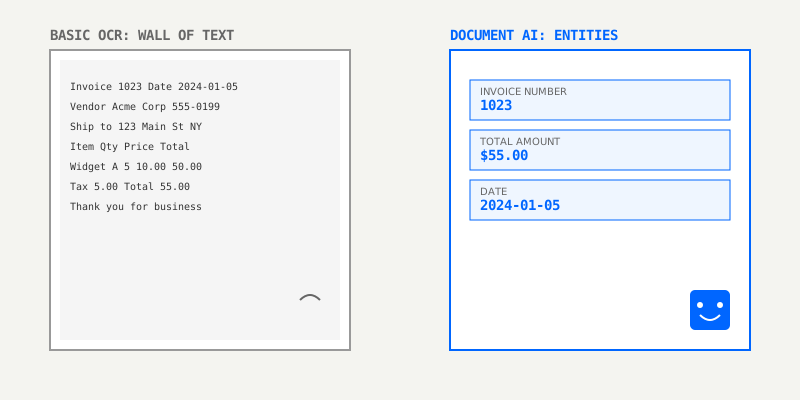
Classic OCR’s job stops at “here are the words on the page.” But most workflows don’t care about every word—they care about specific pieces of information.

That’s where AI comes in.

Modern document AI can:

  • Recognize entities like names, addresses, totals, invoice numbers, policy IDs
  • Understand layout, like which text belongs to which table row or form field
  • Use context to disambiguate similar fields (e.g., multiple dates on the same page)

In other words, it turns “a wall of text” into something closer to a JSON object:

{
  "invoice_number": "INV-10293",
  "invoice_date": "2025-11-02",
  "total_amount": "1499.00",
  "currency": "USD"
}

Once you’re at that level, you can plug documents into your existing systems instead of treating them as one‑off projects.

One Tool in a Bigger Toolbox

You don’t have to build all of this yourself.

Modern services like LeapOCR and others bundle together:

  • Robust OCR for real‑world documents
  • Document AI models tuned for invoices, forms, and other patterns
  • APIs and SDKs that developers can drop into existing workflows

That means teams can start automating document tasks without stitching together half a dozen libraries and services on their own.

What to Do Next If You’re New to OCR

If you’re just getting started, you don’t need a multi‑month “document transformation initiative.”

A simple way to begin:

  1. Pick one small but painful workflow
    For example: monthly invoices from a handful of vendors, or new‑customer onboarding forms.
  2. List the 3–5 fields you actually care about
    Totals, dates, names, IDs—whatever you currently retype by hand.
  3. Run a sample set through an OCR tool
    Compare how long it takes vs your current process, and note where the errors show up.
  4. Decide on a review process
    Maybe someone in ops or finance spot‑checks low‑confidence values before they hit your systems.

Once that first, narrow workflow feels reliable, expanding to more document types and higher volumes becomes much less intimidating—and a lot more obviously worth it.

Back to Blog
Share this article

Ready to automate your document workflows?

Join thousands of developers using LeapOCR to extract data from documents with high accuracy.

Get Started for Free