Published
December 5, 2025
A production-focused guide to turning PDFs and scans into schema-fit JSON without building a brittle cleanup layer after OCR.
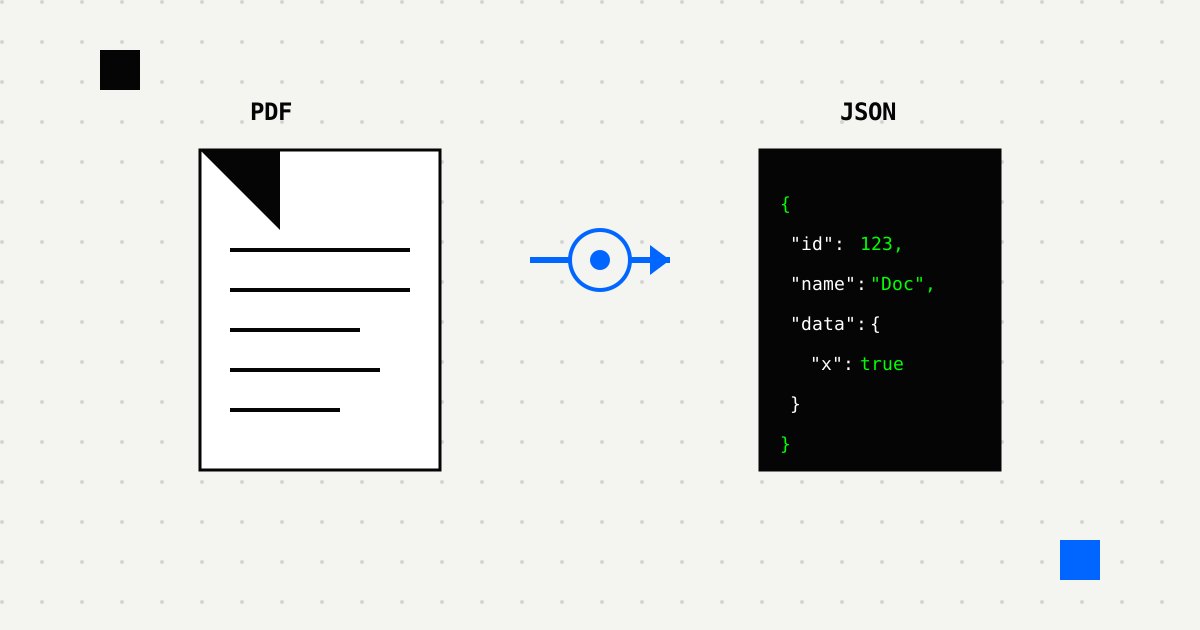
The hard part of PDF to JSON is not serializing a payload at the end. The hard part is getting document data into a shape another system can trust.
That is why so many “PDF extraction” projects stall in the same place: the OCR step technically works, but the team still spends its time normalizing dates, fixing vendor names, repairing totals, and patching edge cases one document class at a time.
This guide walks through a more reliable approach: start from the downstream contract, keep the schema narrow, and make validation part of the pipeline instead of an afterthought.
Who this is for: developers, engineers, and technical teams who need to turn PDFs and scans into clean JSON with minimal manual cleanup.
Before worrying about file formats or OCR models, work backward from your goal. What decision are you trying to automate?
Once you know the decision, identify the 8–12 fields that power it. For an invoice workflow, that might look like invoice_number, invoice_date, due_date, vendor.name, total, and line_items[]. Everything else is noise.
Then figure out where the data needs to go: your database, an ERP system, a CRM, a data warehouse, or a webhook handler.
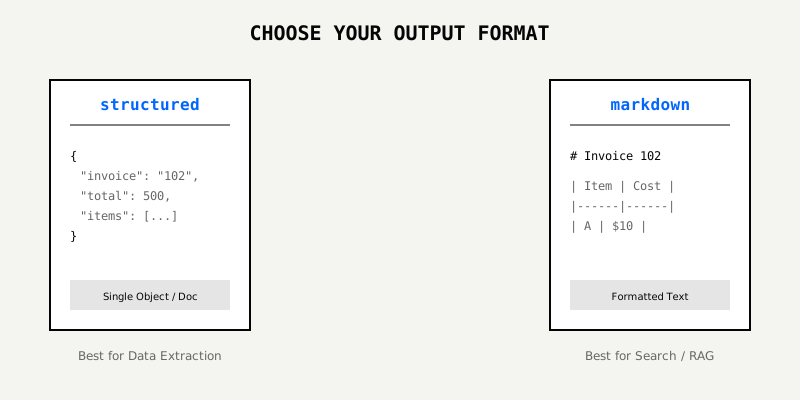
The right output format depends on your document structure and use case:
structured – Returns a JSON object for the document. This works well for invoices, receipts, and forms where all the information belongs together.
markdown – Returns clean markdown text. Best for search indexing, human review, or archival purposes where you don’t need structured fields.
If you need both searchability and structure, you can run both passes and store them side-by-side.
LeapOCR offers three models, and you’ll usually only need one:
standard-v1 – The default choice. Fast and cost-effective. Works well for clean documents and prototypes.
english-pro-v1 – Optimized for English-only content where accuracy matters more than speed. Good for legal documents or financial statements.
pro-v1 – Handles the difficult cases: mixed languages, handwriting, complex tables, and poor-quality scans.
The practical approach: start with standard-v1, measure where it fails, and only upgrade the workflows where harder pages justify the extra cost.
You have two options for controlling the JSON structure:
JSON Schema – Define the exact structure in code. This gives you precision and lets you version control the schema. Best when you want to enforce specific types and validation rules.
Template slug – Use a predefined template configured in the LeapOCR dashboard. Useful when non-technical team members need to adjust the extraction rules without a deployment.
Either way, keep your schema focused. Mark critical fields as required, use descriptive names, and be explicit about formats like dates and numeric amounts.
Here’s the complete flow from document to database:
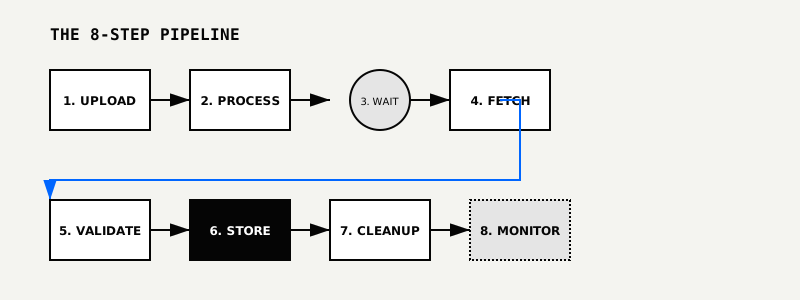
/ocr/uploads/url) or direct upload (/ocr/uploads/direct)waitUntilDone() for simple scripts, or poll /ocr/status/{job_id} if you need progress updates/ocr/result/{job_id} to get the extracted JSON, metadata, and usage info/ocr/delete/{job_id} to remove the data (jobs auto-delete after 7 days regardless)The key point is that JSON extraction is not finished at step 4. It is finished when the result survives your validation rules and is safe to write downstream.
Here’s a complete TypeScript example showing the full workflow:
import { LeapOCR } from "leapocr";

const client = new LeapOCR({ apiKey: process.env.LEAPOCR_API_KEY });

// Submit the document for processing
const job = await client.ocr.processURL("https://example.com/invoice.pdf", {
  format: "structured",
  model: "pro-v1",
  schema: {
    invoice_number: "string",
    invoice_date: "string",
    due_date: "string",
    vendor: { name: "string" },
    line_items: [{ description: "string", total: "number" }],
    total: "number",
  },
  instructions: "Return currency as numbers and dates as YYYY-MM-DD.",
});

// Wait for processing to complete
await client.ocr.waitUntilDone(job.jobId);

// Retrieve the results
const result = await client.ocr.getJobResult(job.jobId);

// Validate the extracted data
const page = result.pages[0].result as any;
const summed = (page.line_items || []).reduce(
  (sum: number, item: any) => sum + (item.total || 0),
  0,
);

if (Math.abs(summed - page.total) > 1) {
  console.warn("Line item total doesn't match invoice total — manual review needed");
}

// Store in your database
// await db.invoices.create({ data: page });

// Clean up
await client.ocr.deleteJob(job.jobId);

// Alternative: using a template instead of inline schema
// const job = await client.ocr.processURL("https://example.com/invoice.pdf", {
//   templateSlug: "invoice-extraction",
// });
// await client.ocr.waitUntilDone(job.jobId);
// const result = await client.ocr.getJobResult(job.jobId);Real-world documents come with complications. Here’s how to handle them:
Tables and multi-column layouts – Use structured format. The AI-native layout engine preserves row structure and reading order better than traditional OCR.
Mixed languages or handwriting – Switch to pro-v1 and keep your schema focused on the essential fields. The broader your schema, the more likely you’ll get noise in difficult cases.
Large files – The TypeScript SDK handles multipart uploads automatically. For custom workflows, you can use the direct upload API with resumable uploads.
Progress tracking in UIs – Poll /ocr/status/{job_id} to get status, progress, processed_pages, and total_pages. This keeps users informed during long-running jobs.
Low-quality or skewed scans – Request higher-resolution scans when possible. If you’re stuck with poor quality, use pro-v1 and narrow your schema to only the critical fields.
Searchability + structure – Run both structured and markdown passes. Store the JSON for automation and the markdown for human review and search indexing.
A few common mistakes:
If your document pipeline still needs heavy cleanup after extraction, the issue is usually the contract around the OCR step, not only the OCR model itself.
A few practical tips for production deployments:
Before rolling this out to production, run a small pilot:
structured format and standard-v1 modelpro-v1 and compare resultsPDF to JSON gets easier once you stop treating OCR output as the finished product. The real product is a stable record that can survive validation, review, and downstream writes.
If you start from the schema, test on ugly files early, and validate before writing, the pipeline gets much simpler to reason about.
For more details, check out the documentation on formats, models, schemas, and the API reference.
Try LeapOCR on your own documents
Eligible paid plans include a 3-day trial with 100 credits after you add a credit card, so you can test actual PDFs, scans, and forms before committing to a rollout.
Keep reading
More implementation guides, benchmarks, and workflow notes for teams building document pipelines.
Why classic OCR struggles on real-world documents and how AI-native, layout-aware extraction turns PDFs and scans into reliable, structured data your systems can trust.
A developer guide to scanned PDF OCR: how to decide between markdown and JSON, where PDF parsing fails, and how to build an extraction layer that still works on ugly real files.
A practical, low-lift way to turn invoices, receipts, onboarding packs, and contracts into structured data—without burning precious engineering cycles.