Published
December 1, 2025
A practical walkthrough for adding LeapOCR to your app using the JavaScript/TypeScript SDK, from installation to your first production-ready workflow.
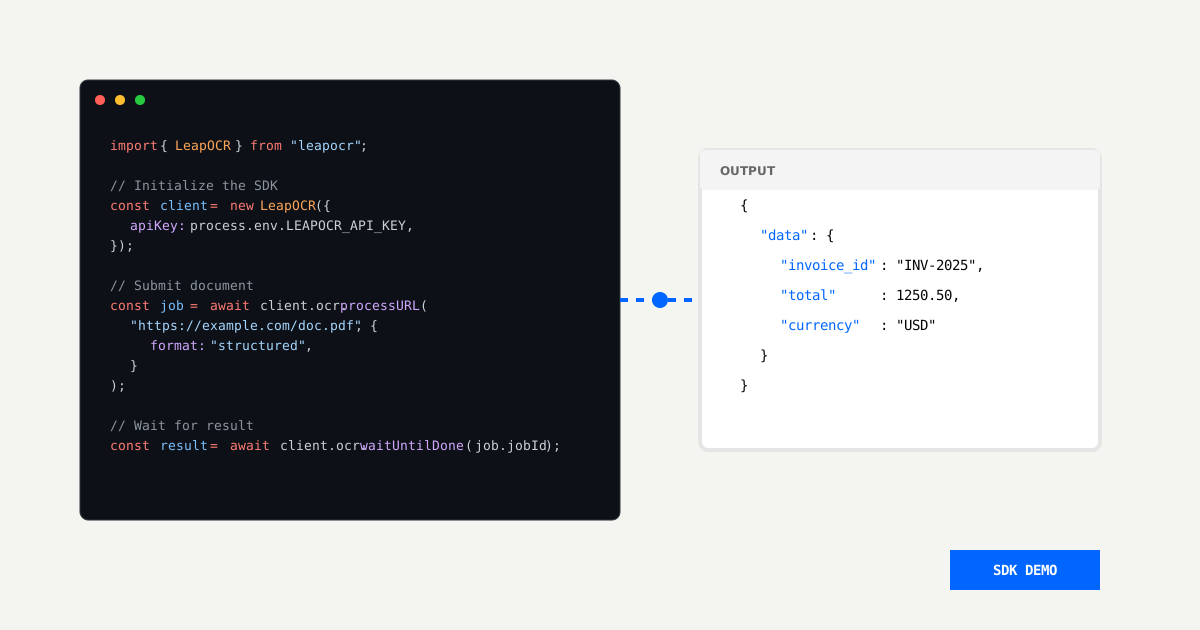
Adding document processing to your application doesn’t require machine learning expertise. This guide walks through integrating LeapOCR into a Node.js or TypeScript project using the JavaScript SDK, moving from setup to extracting structured data.
I’m focusing on the TypeScript SDK here. If you prefer working with another language or calling the HTTP API directly, the LeapOCR documentation covers language-specific guides and API references.
By the end of this guide, you’ll have code that can:
This is written for developers who:
I’ll skip the ML theory and focus on practical integration steps.
Before starting, make sure you have:
Create an API key in your LeapOCR dashboard, then:
LEAPOCR_API_KEY)Keep the LeapOCR documentation handy for reference on other SDKs, raw HTTP requests, and model details.
LeapOCR exposes HTTP APIs, so you could use fetch or axios with JSON payloads directly. The SDK exists to make this easier.
Why the SDK helps:
When raw HTTP makes more sense:
For most JavaScript and TypeScript applications, the SDK is quicker to set up and simpler to maintain.
Start by installing the SDK:
npm install leapocr
# or
yarn add leapocr
# or
pnpm add leapocr
Create a helper module to initialize the client—for example, src/lib/leapocrClient.ts:
import { LeapOCR } from "leapocr";

if (!process.env.LEAPOCR_API_KEY) {
  throw new Error("Missing LEAPOCR_API_KEY environment variable");
}

export const leapocr = new LeapOCR({
  apiKey: process.env.LEAPOCR_API_KEY,
});
Import this client anywhere in your backend:
import { leapocr } from "../lib/leapocrClient";

// later: await leapocr.ocr.processURL(...)
Centralizing initialization makes it easier to change configuration later, mock the client in tests, and avoid creating multiple clients with different API keys.
Let’s start with the simplest workflow: processing a document that’s already accessible via a public URL.
The processing lifecycle has three parts:
jobId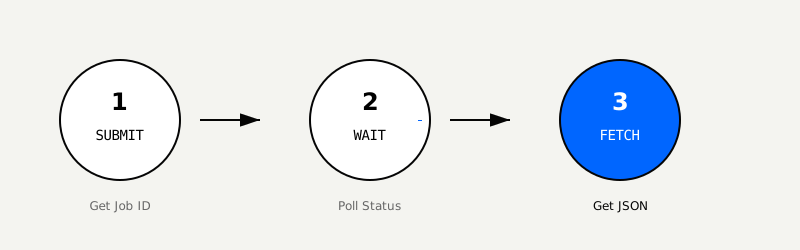
Here’s a working example:
import { leapocr } from "../lib/leapocrClient";

async function processInvoiceFromUrl() {
  const job = await leapocr.ocr.processURL("https://example.com/invoice.pdf", {
    format: "structured",
    model: "standard-v1",
    instructions: "Extract invoice number, date, and total amount",
  });

  // This helper polls until the job finishes
  const status = await leapocr.ocr.waitUntilDone(job.jobId);

  if (status.status !== "completed") {
    throw new Error(`OCR job failed with status: ${status.status}`);
  }

  const result = await leapocr.ocr.getJobResult(job.jobId);

  console.log("Credits used:", result.credits_used);
  console.dir(result.pages, { depth: null });
}

processInvoiceFromUrl().catch(console.error);
You’ve now connected the LeapOCR client, submitted a URL for processing, and retrieved the results. In a real application, this would live in an API route or background worker rather than a standalone script, but the logic remains the same.
Most applications handle user uploads or files stored locally (or in object storage) instead of public URLs. For Node.js environments, combine fs with processFile:
import { readFileSync } from "fs";
import { leapocr } from "../lib/leapocrClient";

async function processLocalInvoice(path: string) {
  const fileBuffer = readFileSync(path);

  const job = await leapocr.ocr.processFile(fileBuffer, {
    format: "structured",
    model: "pro-v1",
    instructions: "Extract invoice number, vendor, date, currency, and total amount",
  });

  const status = await leapocr.ocr.waitUntilDone(job.jobId);

  if (status.status !== "completed") {
    throw new Error(`OCR job failed with status: ${status.status}`);
  }

  const result = await leapocr.ocr.getJobResult(job.jobId);
  return result.pages;
}
In a web application, this function would live in your backend, be called from an API endpoint that receives file uploads, and return the extracted JSON to your frontend or persist it to a database.
LeapOCR provides several options for configuring how documents are processed.
Models:
standard-v1: Fast, general-purpose OCR and data extractionpro-v1: Higher accuracy on complex documents, with higher compute costsOutput formats:
"structured": Returns a single JSON object for the entire document (well-suited for forms and structured data)"markdown": Returns readable text (useful for full-text conversion and search indexing)Choosing the right combination:
standard-v1 with "structured" for most business documents"markdown" when you need searchable text rather than specific fieldsYou usually know which fields you need before writing code. Instead of extracting data from generic OCR output, you can define a JSON schema that tells LeapOCR exactly what to return.
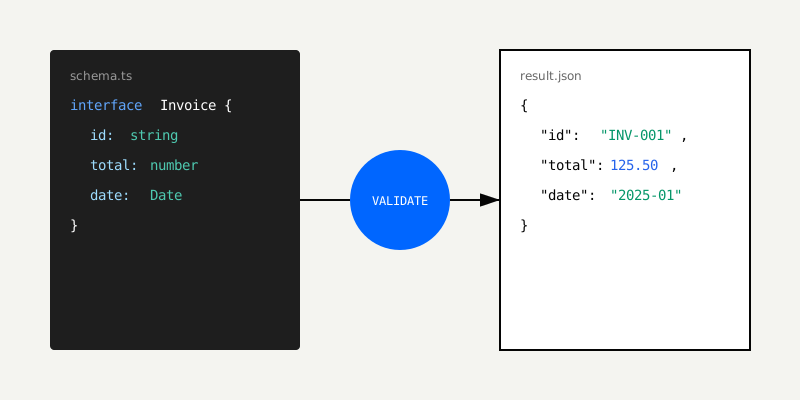
Define your expected structure as a JSON schema:
const invoiceSchema = {
  type: "object",
  properties: {
    invoice_number: { type: "string" },
    total_amount: { type: "number" },
    invoice_date: { type: "string" },
    vendor_name: { type: "string" },
  },
};
Pass this schema when processing a file:
const job = await leapocr.ocr.processFile("./invoice.pdf", {
  format: "structured",
  model: "pro-v1",
  schema: invoiceSchema,
  instructions: "Multiply all monetary fields by 100",
});

const status = await leapocr.ocr.waitUntilDone(job.jobId);

if (status.status === "completed") {
  const result = await leapocr.ocr.getJobResult(job.jobId);
  console.log("Extracted invoice:", result.pages);
}If your codebase already uses Zod for validation, you can reuse those schemas instead of writing duplicate definitions:
Here’s an example using zod-to-json-schema:
import { z } from "zod";
import { zodToJsonSchema } from "zod-to-json-schema";

const InvoiceZodSchema = z.object({
  invoice_number: z.string(),
  total_amount: z.number(),
  invoice_date: z.string(),
  vendor_name: z.string(),
});

const invoiceJsonSchema = zodToJsonSchema(InvoiceZodSchema, "Invoice");

const job = await leapocr.ocr.processFile("./invoice.pdf", {
  format: "structured",
  schema: invoiceJsonSchema,
  instructions: "Translate all text fields to French where reasonable",
});
LeapOCR uses the JSON Schema to structure extraction, while your application uses the original Zod schema for runtime validation and type safety. The instructions field lets you adjust behavior—like translating text or converting units—without changing your schema.
Both approaches give your downstream code a predictable shape for extracted data, while the instructions parameter provides flexibility for output formatting.
For most use cases, waitUntilDone handles everything you need—it polls automatically and returns when the job completes or fails.
If you want more control, like displaying progress in a user interface, you can poll manually:
const pollIntervalMs = 2000;
const maxAttempts = 150; // ~5 minutes
let attempts = 0;

while (attempts < maxAttempts) {
  const status = await leapocr.ocr.getJobStatus(job.jobId);

  console.log(`Status: ${status.status} (${status.progress?.toFixed(1)}% complete)`);

  if (status.status === "completed") {
    const result = await leapocr.ocr.getJobResult(job.jobId);
    console.log("Processing complete!");
    break;
  }

  if (status.status === "failed") {
    throw new Error("OCR job failed");
  }

  await new Promise((resolve) => setTimeout(resolve, pollIntervalMs));
  attempts++;
}
Use waitUntilDone for server-side processing where the client doesn’t need real-time updates. For longer-running jobs or rich UIs, manual polling, webhooks, or message queues work better.
Integration requires handling failure cases. Plan for:
The SDK includes retry logic for transient errors, but you should still wrap calls in try/catch, log the jobId and input metadata, and apply your own timeouts for long-running jobs.
Example error handling:
try {
  const job = await leapocr.ocr.processURL(docUrl, {
    format: "structured",
    model: "standard-v1",
  });

  const status = await leapocr.ocr.waitUntilDone(job.jobId);

  if (status.status !== "completed") {
    throw new Error(`Job did not complete successfully: ${status.status}`);
  }
} catch (error) {
  console.error("LeapOCR error", { error, docUrl });
  // Optionally notify an error tracking service or mark this document as failed
}When you process the same type of document repeatedly—such as invoices from multiple vendors or standardized onboarding forms—templates reduce duplication.
Templates define the fields you need, model instructions, and output formats. Create them once in the LeapOCR dashboard, then reference them by templateSlug in your code:
const job = await leapocr.ocr.processFile("./invoice.pdf", {
  templateSlug: "my-invoice-template",
  model: "pro-v1",
});

const result = await leapocr.ocr.waitUntilDone(job.jobId);
console.log("Extracted data:", result.data);
Templates help when multiple services need consistent extraction behavior, or when you want to adjust extraction logic centrally without redeploying code.
Your API key grants access to your LeapOCR account, so treat it like a password.
Common patterns:
LEAPOCR_API_KEY in .env (and add .env to .gitignore)If a key is accidentally exposed, rotate it immediately from the LeapOCR dashboard and redeploy with the new key.
Getting code working locally is the first step. Running it reliably in production requires additional planning.
Production checklist:
You can delete completed jobs to manage storage:
await leapocr.ocr.deleteJob(job.jobId);
console.log("Job deleted successfully");
Whether to delete jobs depends on your auditing requirements and how long you need to retain results. The key is making an intentional choice rather than letting jobs accumulate indefinitely.
Once you’ve established the basic integration, apply it to real workflows in your application:
A practical approach is to start with one document type, validate that the integration works reliably, then expand to additional document types as needed.
Try LeapOCR on your own documents
Eligible paid plans include a 3-day trial with 100 credits after you add a credit card, so you can test actual PDFs, scans, and forms before committing to a rollout.
Keep reading
More implementation guides, benchmarks, and workflow notes for teams building document pipelines.
Install the official LeapOCR PHP SDK from Packagist, process documents with a native PHP API, and ship OCR workflows without hand-rolling multipart uploads or polling.
The LeapOCR Go, Python, JavaScript, and PHP SDKs now include webhook signature verification helpers, so you can validate customer webhooks with the raw request body and timestamp header instead of reimplementing HMAC logic.
How to build a resilient, high-throughput document ingestion pipeline for logistics using LeapOCR and Go.